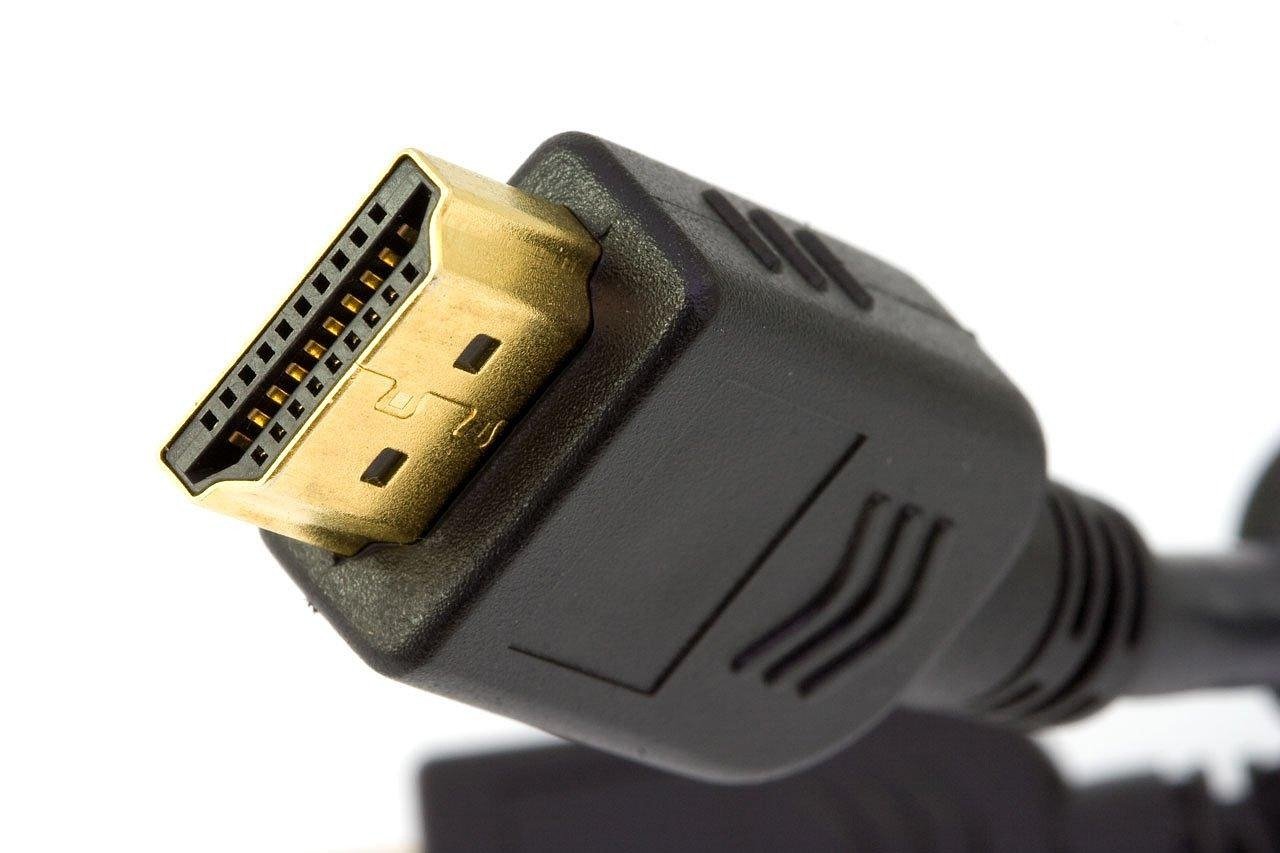
You plug a PS5 into a PC to stream, then wonder which is the best capture card for PS5. For most live streams a modest card is enough; high-resolution recording and high-refresh passthrough need a more capable, pricier model.
The right pick depends on three things: what you publish, how your display is connected, and what your PC can accept. Capture also leans on the rest of your hardware, so it helps to read our best gaming pc build advice alongside this guide.
What streaming actually requires
The most common misconception is that a PS5 stream needs a 4K capture card. Most live streams go out at 1080p or less, so a card that captures 1080p at 60 fps covers them, according to Gamers Connected’s capture card category notes. Paying for 4K capture only makes sense if you also record finished videos in higher quality.
Elgato’s capture card guide shows how the entry level works: the Game Capture Neo records and streams at 1080p60 while you play at full resolution with HDR on your display. The same guide describes the 4K S, which captures up to 4K60 with HDR recording, as ideal for YouTube. If you only go live, start at the 1080p60 tier. If you publish edited 4K recordings, step up.
Capture card comparison at a glance
These models cover the main steps from simple streaming to high-end recording. Read the capture column as the card’s recording ability, not what your display shows.
| Card | Capture ability | Connection and requirement | Planning use |
|---|---|---|---|
| Elgato Game Capture Neo | 1080p60 record and stream | Plug-and-play on Windows, macOS and iPad | Streaming-first setups that do not need 4K files |
| Elgato HD60 X | 1080p60 HDR10 or 4K30 capture | External card, needs a fast USB port | Streaming with occasional 4K recording at a lower frame rate |
| Elgato 4K S | Up to 4K60 with HDR recording | USB, slower than the 10Gbps link on the 4K X; built-in analog audio input | Polished YouTube recording and console party chat |
| Elgato 4K X | Up to 4K144, HDMI 2.1 | 10Gbps USB | High-refresh gameplay and HDR passthrough |
| Elgato 4K Pro | Passthrough up to 4K240 and 8K60 HDR | Internal PCIe, needs an x4, x8 or x16 slot | Desktop PCs with a free slot |
Figures come from Elgato’s capture card guide, except the HD60 X specifications, which come from a retail listing.
Passthrough is not the same as capture
A second misconception is that a card which passes 4K to your TV also records 4K. A capture card sits between the console and the display: it passes the picture to the screen and sends a copy to the computer, where OBS Studio or Elgato Studio can record or stream it. Those two paths have separate limits.
- Capture is what the file gets. The HD60 X listing shows 1080p60 HDR10 or 4K30 capture, while the 4K S captures up to 4K60. A card that only records 1080p60 can still let you play at full resolution, as the Neo does.
- Passthrough is what you see. Retail listings give the 4K S and the 4K Pro separate passthrough figures, and the 4K Pro is the higher-end option with HDR passthrough. Match this figure to your display, not to your recording goal.
- High refresh is rare. Gamers Connected notes that cards on its list generally pass 4K60, and only one card passes 4K144 with VRR. Elgato’s 4K X is its card for HDMI 2.1 passthrough, with capture up to 4K144.
So yes, a capture card works in 4K, but check both numbers. Pick the capture figure for your files and the passthrough figure for your screen.
USB or PCIe: what your PC must provide
External USB cards suit laptops and shared desks, while the internal option suits a desktop you do not move. The choice also depends on the host PC, and an underpowered one limits even a good card.
- USB cards need a fast port. Gamers Connected says external cards on USB 3.0 or USB-C 3.2 need a fast port and a PC that can encode the stream. An old port or a busy machine is the usual bottleneck, not the card.
- The 4K X leans on bandwidth. Elgato says its 10Gbps USB connection is what enables the higher frame rates compared with the 4K S, so plug it into a port that supports that speed.
- The 4K Pro is desktop only. It installs in a PCIe slot inside the PC, needs an available x4, x8 or x16 slot, is not portable and does not work with laptops.
Which card suits which goal
The best capture card for PS5 is the one whose capture and passthrough limits match your goal, so pick by use rather than by the biggest number.
- Going live only: choose the Neo or HD60 X. Both cover 1080p60 streaming, which is what most live streams need.
- Recording HDR video for YouTube: choose the 4K S for up to 4K60 capture. Its built-in analog audio input, used with Chat Link Pro, also helps console creators who want party chat in the recording.
- High-refresh display and HDMI 2.1: choose the 4K X, but only if your port and display can use it. For a 60 Hz screen the extra capability buys nothing.
- Desktop with a free slot: consider the 4K Pro for its high-end passthrough.
- Another 4K60 option: the AVerMedia Live Gamer Ultra S is listed as a 4K60 HDMI capture card, a comparison point against the 4K S.
If you are weighing a portable PC for play instead of a console, our Best Handheld PC Gaming Devices In 2026: Portable Powerhouses For Serious Gamers – Lunacheats guide covers that route.
Current pricing
Prices below come from Amazon Thailand search listings fetched on 2026-10-24, shown in Thai baht, and they change often. The Elgato 4K S was listed at THB 4,964.15 against a list price of THB 5,403.18. The AVerMedia Live Gamer Ultra S was listed at THB 4,727.74. The Elgato 4K Pro was listed at THB 8,071.17 against a list price of THB 10,131.26.
The AVerMedia card therefore sat slightly below the 4K S at the time of the listing. The 4K Pro costs substantially more, so it makes sense only if you want a PCIe card and its passthrough.
Connecting a PS5 to a capture card
The connection order follows the card’s position between console and screen.
- Connect the PS5’s HDMI output to the capture card’s HDMI input.
- Connect the card’s HDMI output to your TV or monitor, which carries the passthrough picture.
- Connect the card to the PC: a fast USB port for external cards, or the PCIe slot for the internal one.
- Open OBS Studio or Elgato Studio on the PC and record or stream from the card.
If the picture stutters, check first that an external card sits in a USB 3.0 or USB-C 3.2 port and that the PC can handle encoding. If a drifting stick is spoiling your recorded sessions, Fix PS5 Stick Drift Fast: 7 Proven Fixes To Stop Drifting In 2026 – Lunacheats explains the fixes.
Frequently asked questions
| Question | Answer |
|---|---|
| Do I need a PC to use a capture card with a PS5? | Yes. The card sends a copy of the picture to a computer, where you record or stream with software. |
| Which software works with these cards? | Elgato names OBS Studio and Elgato Studio as apps for recording or streaming the captured footage. |
| Can I use the Elgato 4K Pro in a laptop? | No. It is an internal PCIe card, not portable, and does not work with laptops. Choose an external USB card instead. |
| Can I capture party chat? | The Elgato 4K S has a built-in analog audio input for console creators, used with Chat Link Pro. |
Leave a Reply