| Factor | Supported value | Planning use |
|---|---|---|
| Interface | PCIe Gen4x4 NVMe, Key M socket; M.2 SATA drives are not supported | Filter listings for NVMe Gen4 first. A SATA M.2 drive will not work, however cheap. |
| Capacity | 250 GB to 8 TB | Choose by how many games you want installed at once, not by the ceiling. |
| Sequential read speed | 5,500 MB/s or faster recommended | Treat it as a floor when comparing spec sheets. |
| Form factor | 2230, 2242, 2260, 2280, 22110; width up to 25 mm | Confirm the listing names one of these lengths. |
| Total thickness with cooling | Up to 11.25 mm (8.0 mm above the board, 2.45 mm below) | Compare the heatsink’s dimensions with these limits before you buy. |
| Cooling | Heatsink or heat transfer sheet required | Budget for a heatsink if the drive does not ship with one. |
| Typical game size | 50GB to 80GB per title; internal drive holds 825GB | Shows how fast the built-in storage fills. |
Figures come from Sony’s PS5 M.2 SSD installation guidance, with game-size and internal-drive numbers from Lexar’s PS5 SSD upgrade guide.
How to upgrade PS5 SSD storage: buy a PCIe Gen4 NVMe M.2 drive that meets Sony’s size limits, fit a heatsink or other cooling structure, install it in the expansion bay and format it. Formatting erases everything on the drive.
If you are weighing a console upgrade against a desktop, the hub’s guidance on a best gaming pc build covers the other side of that decision.
How extra storage changes your game library
The built-in drive is the reason most people upgrade. Lexar notes that the PS5’s internal drive holds 825GB, and current titles average 50GB to 80GB each, so the space disappears faster than the headline figure suggests. Sony says that once an M.2 SSD is installed, it can be used to download, copy and launch PS5 and PS4 games, as well as media apps.
Capacity is best planned around the number of games you want installed at the same time. Older favourites you keep ready for replays, including games you play with cheat tools, take up the same room as new releases. That is why the right size depends on your habits rather than on a single recommended figure.
- Rotating a few current games: a smaller drive in Sony’s range can work if you uninstall as you finish. With titles averaging 50GB to 80GB, though, the lowest supported capacity leaves little room.
- Keeping a backlog installed: Lexar says a 2TB drive gives around 1.65TB usable, which holds around 20 titles without curating. That suits players who hate re-downloading.
- Building a very large library: Sony supports drives up to 8 TB. Only go that far if your installed collection genuinely needs it, since the extra capacity is wasted otherwise.
If you have not settled on a console yet, PS5 Slim vs PS5 Pro: Which PlayStation Should You Buy In 2026? – Lunacheats compares the models before you plan storage around one.
Compatible SSD requirements
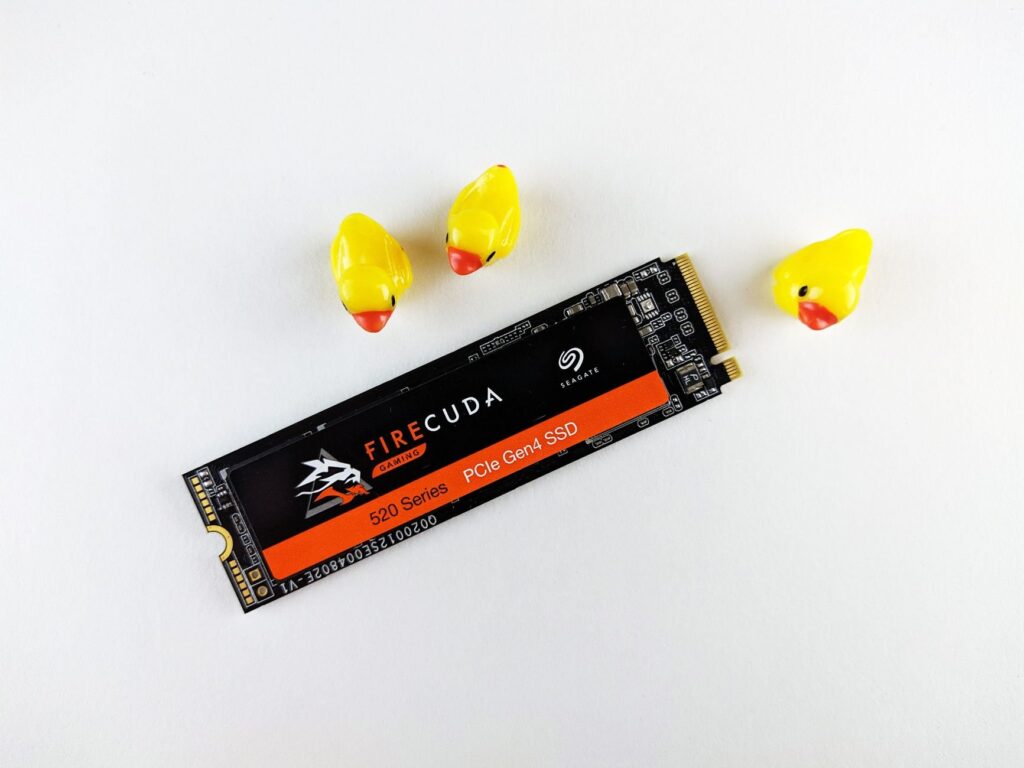
A compatible drive is an M.2 NVMe SSD that uses the PCI-Express Gen4x4 interface with a Key M socket. Sony states plainly that M.2 SATA SSDs are not supported, so a drive that looks right but runs over SATA will not work.
Physical fit is the next filter. Sony lists form factors 2230, 2242, 2260, 2280 and 22110, with width up to 25 mm and lengths of 30, 42, 60, 80 or 110 mm. A listing that names one of those form factors is the safe choice. Sony recommends a sequential read speed of 5,500 MB/s or faster, which makes that figure a floor, not a target to chase.
Manufacturers do publish faster drives. Lexar says its NM790 offers sequential reads up to 7400MB/s, about 35% above the 5500MB/s figure. Faster headline numbers are not a requirement, so spend the difference on capacity or a better heatsink if you must choose.
Heatsink and clearance
Yes, you need a cooling structure. Sony says that using an M.2 SSD with the console requires effective heat dissipation, such as a heatsink, and instructs players not to run a drive without a heatsink or heat transfer sheet.
Lexar explains the practical risk: a drive without a heatsink can get warm enough to trigger its own thermal protection and throttle read speeds. The effect shows up in long sessions, when a drive that looks fast on paper slows down. A cheap, correctly sized heatsink protects the speed you paid for.
The catch is size. Sony warns that cooling structures vary greatly, so the finished assembly has to stay within its limits: up to 11.25 mm in total, with up to 8.0 mm above the board and 2.45 mm below.
- Drive ships with a heatsink: check the stated dimensions against Sony’s limits before buying, because a bundled heatsink is not automatically a fit.
- You add your own: compare the heatsink’s height with the allowance above the board, and note whether it adds thickness underneath.
- The cover will not close: Sony says the cooling structure then likely exceeds the size requirements, so swap it for a slimmer one rather than forcing the cover.
Installing the SSD
Gather what you need first. Sony asks for a #1 Phillips or cross-head screwdriver, plus your drive with its cooling attached. Work on a clean, flat surface. Before handling the drive, touch a metal-grounded object to discharge static electricity from your body, as Sony advises.
- Switch the console off before opening anything.
- Remove the expansion slot cover. On the PS5 Slim, iFixit’s expandable storage guide describes a 17.1 mm screw securing it.
- Match the spacer to your drive. The slot has multiple labelled indents, so move the spacer to the one that fits your SSD’s length.
- Slide the SSD into the socket at a slight downward angle. Lexar specifies a 30-degree angle, then press the drive flat.
- Secure the retention screw without overtightening it. iFixit warns that too much force may damage the SSD.
- Refit the slot cover. If it will not close properly, revisit the heatsink fit described above.
Do not power on or play while the cover is off. Sony is explicit about this. Once the cover is back, you are ready to format.
Formatting and after-install checks
The console needs to format the drive before games can go on it, and Sony warns that formatting erases any data already on the drive. A new drive has nothing to lose, but a drive reused from another device should be emptied of anything you want to keep first.
Once the drive is formatted, install or copy a game and launch it from the new storage to confirm everything works. When you are done adding hardware, Hall Effect PS5 Controller: Why Magnetic Analog Sticks Could Be the Upgrade You Need in 2026 – Lunacheats covers another upgrade that suits the same console.
Frequently asked questions
How long does the installation take?
iFixit lists 10 to 20 minutes and an Easy difficulty rating for upgrading the expansion storage on a PS5 Slim, per its upgrade guide.
What if a game has problems on the new drive?
Sony advises moving the affected game to the console’s internal storage if you experience problems while playing a game installed on M.2 SSD storage.
Can I move games between the internal drive and the new SSD?
Yes. Sony says you can freely move games between the console’s internal storage, a connected USB extended storage device and the M.2 SSD, so you can shift titles around as your library changes.
Leave a Reply