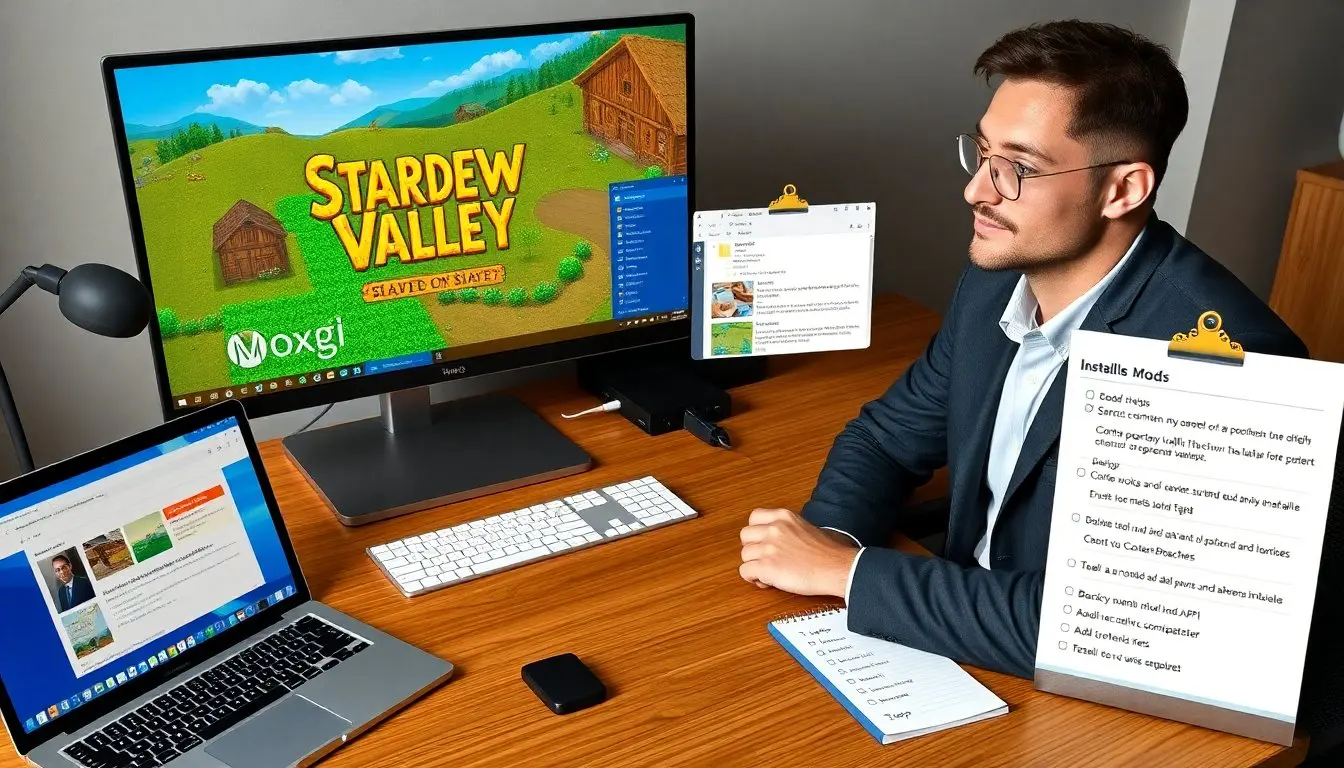
How to install mods Stardew Valley is a common question for players who want to expand their game. This guide lists clear steps and checks. It shows required tools and safe practices. It avoids jargon and gives simple actions. The reader can follow each step and get mods working in under an hour. Below you will find practical preparation steps, an install order that reduces problems, specific notes for the most common mod types, and routine maintenance tips so your game stays playable across updates and multiple playthroughs.
Key Takeaways
- Installing mods in Stardew Valley requires a legal game copy, backups of your save files, and matching mod compatibility with your game version.
- SMAPI (Stardew Modding API) must be installed first as it safely runs most Stardew Valley mods and ensures stability.
- Content Patcher mods are recommended for changing game content without altering core files and should be placed in the Mods folder.
- Always back up original files before applying XNB replacements, custom farms, or texture packs and follow specific mod instructions carefully.
- Manage mods safely by testing one at a time, controlling load order, using SMAPI logs to identify conflicts, and regularly updating mods and SMAPI.
What You Need Before Installing Mods
The user needs a legal copy of Stardew Valley and a PC that runs the game. They need the game version to match mod requirements. They need a backup of the save folder in Documents/My Games/StardewValley/Saves. They need basic file tools like a zip extractor and a text editor. They should enable Steam or GOG cloud backups only after testing mods. They should check mod pages for compatibility notes before download.
Practical checklist: confirm your game version (visible on the title screen), install a current .NET runtime if a mod or SMAPI installer requests it, and make a timestamped copy of your entire Saves folder before you touch any files. If you use Steam, opt out of automatic cloud sync for one play session while testing mods, because cloud restores can overwrite local test saves. Keep a small folder with utility tools—7-Zip (or similar), Notepad++ (or another text editor), and a simple file manager—so you can extract archives and edit config.json files safely.
Also note compatibility signals on mod pages: whether a mod requires a specific SMAPI version, other mods as dependencies, or a particular game version. If a mod is marked “outdated” or “incompatible with the latest experimental build,” skip it until it’s updated or use a separate clean save to test.
Install SMAPI (Stardew Modding API)
SMAPI handles most Stardew Valley mods. The player must install SMAPI before adding mods. SMAPI runs the mods and connects them to the game in a safe way. The guide recommends SMAPI for stability and for most community mods.
Installation steps in brief: run the SMAPI installer for your platform and follow prompts to point it at your Stardew Valley installation. On Windows SMAPI usually updates your game launcher so that launching Stardew Valley runs SMAPI automatically; on other platforms follow the installer notes. After installation, launch the game once to let SMAPI create a Mods folder and write its initial log files.
Troubleshooting: if SMAPI fails to start the game, check the SMAPI console window for errors (missing dependencies, wrong install path, or blocked executables). If you see missing DLL errors, reinstall the correct version of SMAPI or the required runtime. Keep the SMAPI log file (smapi-internal.log) when seeking help on modding forums—it contains the exact error lines mod authors use to diagnose problems.
Install Content Patcher Mods (Recommended)
Content Patcher mods work with SMAPI and change game content without replacing core files. They download a Content Patcher mod as a zip or folder from a trusted site. They extract the folder into the Mods folder inside the Stardew Valley game directory. They ensure the mod folder contains an About.json file and an assets folder when required. They start the game and check the SMAPI console to confirm that Content Patcher loaded each mod. They update Content Patcher first when instructed on mod pages.
Step-by-step approach: 1) Verify you have the latest compatible Content Patcher version in Mods. 2) Download the mod archive and extract so the top-level folder name matches the mod name; inside it you should see About.json (or manifest.json) and the assets directory if the mod provides images or data. 3) Place that top-level folder in Stardew Valley/Mods. 4) Launch the game and watch the SMAPI console: Content Patcher prints a line for each mod it loads and reports any missing assets or syntax errors.
If a Content Patcher mod doesn’t appear in-game, check for common issues: accidental nested folders inside the mod (e.g., ModName/ModName/…), a missing About.json, or a dependency not installed. Many mods include configuration options in a config.json—edit that with a text editor while the game is closed, then relaunch to test changes. Because Content Patcher avoids direct file replacement, it’s safer for updates and easier to remove if something breaks.
Install Other Mod Types (XNB Replacements, Custom Farms, Texture Packs)
XNB replacement mods replace game data files directly. The player should backup original XNB files before replacing them. They place XNB replacements into the Content folder inside the game install. For custom farms, they put the new map files in the Maps folder or follow the mod author instructions. Texture packs typically go into a Mod folder or the Content folder, depending on the pack. They always read install notes on the mod page. They test the game after each install to catch conflicts early.
Detailed guidance: for XNB replacements, always create a folder labeled “Original_XNB_Backup_[date]” and copy the exact files you will replace into it. That lets you undo changes quickly. When replacing XNBs, verify the file names and subfolders match exactly; mismatched names will cause missing sprites or crashes. For custom farms that use map files (.xnb or .tbin), follow the author’s instructions; some farms require running an installer mod or placing files under Mods instead of the Content folder.
Texture packs and sprite overhauls can be large and may conflict with other visual mods. Test texture packs on a clean save first if you care about existing save cosmetics (trees, buildings, and NPC portraits can change). If two mods replace the same asset, decide which version you prefer and remove or rename conflicting files, or use a load-reordering tool if available. When removing any direct-replacement mod, restore your original XNBs from your backup before launching.
Manage Mods Safely: Backups, Load Order, And Configs
They create a full backup of the Saves and the game Content folder before major changes. They keep a separate backup copy for quick restore. They control load order by installing mods one at a time and testing. They use SMAPI logs to find load errors and conflicts. They edit mod config.json files with a text editor if the mod exposes settings. They use a version manager or a cloud folder to store stable mod sets for different playthroughs. They update mods and SMAPI regularly and read change notes before updating.
Best practices for long-term mod management: maintain labeled mod sets (for example “vanilla-like”, “visual-only”, “overhaul”) in separate folders so you can switch playstyles without rebuilding from scratch. Before updating SMAPI or the game, copy your current Mods and Saves folders to a dated archive. When diagnosing crashes, disable half your mods and binary search to find the offender: re-enable half of the disabled mods repeatedly until you isolate the conflict. Read SMAPI’s error output and look for “Exception in …” lines—those point to which mod threw the error.
Finally, be cautious with multiplayer: some mods are single-player only, others require all players to have the same mods and versions. If you plan to play co-op, confirm mod compatibility across players and back up the host’s save before joining. Regularly check the mod pages for updates and changelogs, and remove mods that are no longer maintained if they cause repeated conflicts with new game or SMAPI versions.