The best capture card for PS5 helps users stream and record gameplay with low latency and high quality. This guide lists top capture cards for PS5 and explains how to pick one. It also shows step-by-step setup and common fixes. The reader will leave with clear options and action steps they can use right away.
Key Takeaways
- The best capture card for PS5 depends on your streaming needs, with options for true 4K60 capture like the Elgato 4K60 Pro MK.2 or portable USB cards like the Elgato HD60 X.
- PCIe capture cards offer lower latency and higher bandwidth, ideal for PCs with available slots, while USB cards provide portability and ease of setup for laptops or casual use.
- Look for features like hardware encoding to reduce CPU load during streaming and ensure compatibility with your streaming software and PC hardware.
- Ensure your capture card supports 4K passthrough and HDR if you want to maintain visual quality on your display while recording or streaming.
- Proper setup includes connecting PS5 HDMI output to the card, the card to your display, installing drivers, and configuring HDCP settings to avoid signal issues.
- Use wired networks for stable streaming, keep drivers updated, and test recording settings before going live to optimize your capture experience.
Top Capture Cards for PS5 — Best For Streaming, Recording, and 4K
Elgato 4K60 Pro MK.2 ranks high as the best capture card for PS5 for creators who want true 4K60 capture. It uses PCIe to send video to the PC. It delivers consistent frame rates and low latency. It supports HDR10 pass-through and records high bitrate video. Many streamers choose it for long recording sessions and stable performance.
Elgato HD60 X offers a compact USB option for users who want portability. It captures 1080p60 and supports 4K passthrough. It works with streaming software and has plug-and-play drivers. It costs less than internal cards and fits freelancers and casual streamers.
AVerMedia Live Gamer 4K GC573 suits users who want internal power with strong software. It captures 4K60 HDR and includes hardware encoding. It reduces CPU load during streams. It pairs well with PCs that have spare PCIe slots.
Razer Ripsaw HD provides budget-friendly features and simple USB C connection. It captures 1080p60 while allowing 4K passthrough. It uses standard drivers and works across major streaming apps. It fits users who need reliable capture without a high cost.
Magewell USB Capture 4K Plus targets users who need stable, driver-free capture. It connects by USB and supports multiple formats. It suits creators who need easy multi-platform compatibility. It costs more but reduces setup time.
The buyer who wants the best capture card for PS5 should match the card features to workflow. If the user wants 4K60 capture, they should choose an internal PCIe 4K card like Elgato 4K60 Pro MK.2 or AVerMedia GC573. If the user wants a simple portable setup, they should pick a USB option such as Elgato HD60 X or Razer Ripsaw HD. The guide below helps the user decide.
How To Choose The Right Capture Card For Your PS5
The buyer should first define the use case. The user should ask: will they stream, record, or both? The user should decide if they need 4K60 capture or 1080p60. The user should check the PC ports and the PS5 outputs.
The buyer should next check connection type. PCIe capture cards offer higher bandwidth and lower latency. USB capture cards offer portability and easier setup. The buyer should match the capture card to the PC capabilities. For example, a user with a laptop should pick a USB capture card.
The buyer should then consider encoding. Hardware encoding offloads work from the CPU. Cards with hardware encoders help users who run multiple apps during streams. Software encoding works but increases CPU load. The buyer should check the streaming software compatibility and the capture card drivers.
The buyer should evaluate pass-through and HDR support. If the buyer wants to play in 4K while capturing at lower resolution, they should pick a card with 4K pass-through. If the buyer wants HDR recording, they should pick a card that supports HDR capture and HDR passthrough. The buyer should remember that HDR recording can increase file size and encoding demands.
The buyer should also compare latency, bitrate limits, and included software. The buyer should read user reviews and test reports. The buyer should weigh price against long-term needs. In short, the buyer should choose the best capture card for PS5 that matches resolution needs, PC hardware, and streaming goals.
Setup, Common Issues, And Pro Tips For A Smooth PS5 Capture Workflow
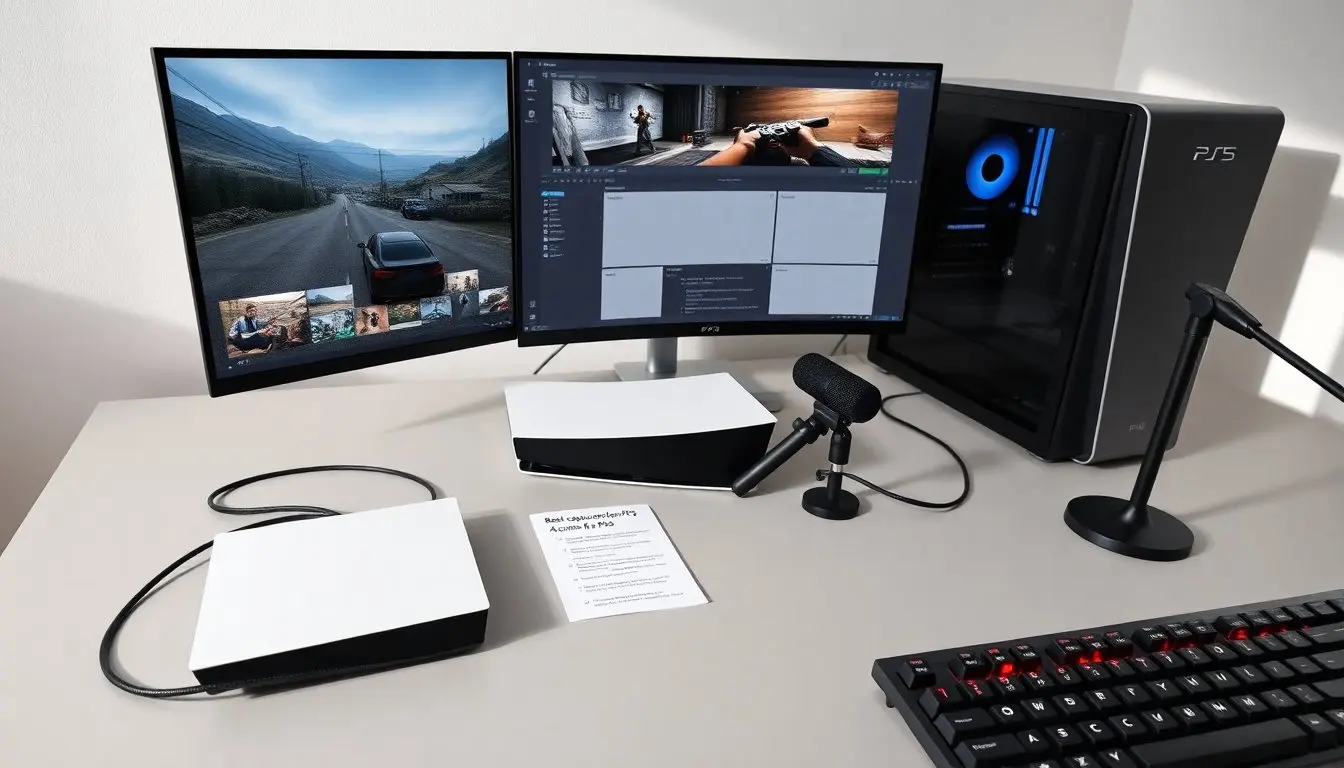
To set up a capture card for PS5 the user should follow these steps. First, the user should connect the PS5 HDMI out to the capture card HDMI in. Second, the user should connect the capture card HDMI out to the TV or monitor. Third, the user should connect the capture card to the PC via USB or PCIe. Fourth, the user should install drivers and open the streaming app.
If the user sees no signal the user should check cables and switch HDMI ports. The user should confirm that the PS5 HDMI setting uses the correct resolution. The user should disable HDCP if they record gameplay locally. The user should re-enable HDCP when they watch protected content.
If the user sees lag the user should check capture card firmware and USB ports. The user should move the capture card to a USB 3.0 port or a direct PCIe slot. The user should close other apps that use CPU or USB bandwidth. The user should lower capture bitrate or resolution to test performance.
If the user sees color or HDR issues the user should verify HDR pass-through settings on both PS5 and capture card software. The user should test with HDR on and off to isolate the issue. The user should update GPU drivers and capture card firmware to fix known bugs.
Pro tips: the user should use wired network for stable streaming. The user should record test clips at the final settings before a live session. The user should label cables and keep spare high-quality HDMI cables. The user should backup recorded files to external storage. The user should keep capture card drivers up to date.
Choosing a reliable card helps. The buyer who selects the best capture card for PS5 now will reduce setup time and avoid many common problems.